Snowflake Workspace Notebooks are powerful for Python and SQL – but what if your team also works in Scala, Java, R, or Julia? Snowflake has first-class Scala and Java SDKs. R is the lingua franca of statistics and has over 20,000 packages on CRAN. Julia is gaining traction for high-performance numerical computing. Yet none of these languages are natively available in Workspace Notebooks.
In this post I’ll show how the snowflake-notebook-polyglot toolkit adds all four languages to Workspace Notebooks. By the end you’ll be able to write %%scala, %%java, %%R, and %%julia cells in a single notebook – with Snowpark connectivity, DataFrame interop between languages, and UDF registration from notebook cells.
The R section here is intentionally brief. For the deep dive on data interop, the Feature Store, the Model Registry, and end-to-end ML workflows – all from R, all inside Snowflake – see the Piste Guide to R and Snowflake, which covers the skiLift and skiPatrol packages that Hex Field maintains under an agreement with Posit.
The Approach: Bridge Libraries and Shared Infrastructure
Workspace Notebooks run a Python kernel inside an SPCS container. There’s no R kernel, JVM, or Julia runtime available. But where there’s Python, there’s a path to other runtimes via mature bridge libraries:
- Scala via JPype – embeds a JVM via JNI (Java Native Interface), running Scala through the Scala IMain REPL
- Java via JPype + JShell – the same in-process JVM, using JDK 17’s built-in JShell REPL
- R via rpy2 – a mature (15+ years) Python package that embeds a full R interpreter via C-level bindings
- Julia via JuliaCall – embeds a Julia runtime, with PythonCall.jl on the Julia side
All four bridges run in-process with shared memory – no subprocess overhead, no serialisation to disk, no network calls between the Python kernel and the language runtime. Each bridge registers an IPython cell magic (%%scala, %%java, %%R, %%julia) so you write code in your preferred language directly in notebook cells.
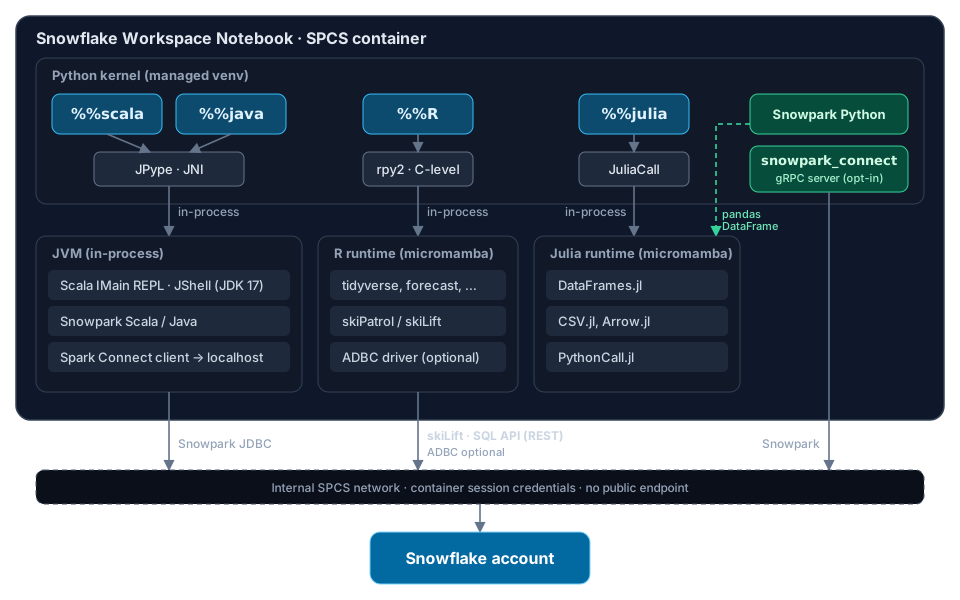
The key components at a glance:
| Language | Bridge | Mechanism | Overhead | Cell Magic |
|---|---|---|---|---|
| Scala | JPype | JNI (in-process JVM) | Low | %%scala |
| Java | JPype + JShell | JNI (in-process JVM) | Low | %%java |
| R | rpy2 | C-level embedding | Low | %%R |
| Julia | JuliaCall | C-level embedding | Low | %%julia |
Two Network Paths
Workspace Notebooks run inside a Snowpark Container Services (SPCS) container, and that container has two very different network paths.
To your Snowflake account: internal, with no setup. Snowflake gives every container a short-lived OAuth token for the session (in /snowflake/session/token, refreshed every few minutes) and the hostname to use it with (SNOWFLAKE_HOST). Connections made this way go over Snowflake’s internal network, not out to your account’s public endpoint. See Using Snowflake-provided service user credentials in the Snowflake docs. Every route to the database in the diagram uses it: Snowpark JDBC for Scala and Java, skiLift’s SQL API (REST) for R, and Snowpark for Python. Julia doesn’t connect directly at all; it receives data from Snowpark Python as a pandas DataFrame, as the Julia example below shows. This is what lets you bring other languages to your data without the data leaving your Snowflake account.
To the outside world: blocked by default. Outbound internet access from the container is closed unless an administrator opens it with an External Access Integration (EAI). The toolkit needs one only during setup, to download language runtimes and packages. It never needs one to reach your Snowflake data.
What’s an EAI? An External Access Integration is a Snowflake object that lets code running inside Snowflake reach specific hosts on the internet. An administrator creates network rules listing the allowed hosts (for this toolkit, hosts such as
conda.anaconda.org,cloud.r-project.org,repo1.maven.organdgithub.com), wraps them in an EAI, grants it to the roles that need it, and enables it on the notebook. Everything else stays blocked. See Snowflake’s External network access overview, Notebooks on Container Runtime and Set up external access for Snowflake Notebooks, and the toolkit’s EAI Management section below.
The JDK is shared between Scala and Java (installed once), and micromamba is the shared package manager for all language runtimes. You don’t download the same infrastructure twice.
Getting Started with snowflake-notebook-polyglot
The toolkit has evolved from separate per-language shell scripts into a unified Python package, snowflake-notebook-polyglot (imported as sfnb_polyglot). Whether you want Scala only, R only, or all four languages, the setup is the same single-cell bootstrap.
Single-Cell Setup
Download sfnb_setup.py from the toolkit repo and upload it alongside your notebook. It’s the only file you need: on first run it pip-installs the rest of the toolkit from GitHub. Create a YAML config, or use one of the presets:
from sfnb_setup import setup_notebook
setup_notebook(config="my_config.yaml")
That’s it. setup_notebook() handles everything:
- EAI validation – finds the External Access Integrations attached to the notebook’s service, checks that they allow the hosts needed for your chosen languages and packages, and adds any that are missing if your role has permission (otherwise it prints the SQL for an administrator to run)
- Runtime installation – installs micromamba, creates isolated environments for each enabled language via conda-forge
- Bridge configuration – pip-installs bridge libraries (rpy2, JPype1, juliacall), registers cell magics
- Session context – optionally sets warehouse, database, schema from the config
Configuration
The YAML config controls which languages to install and how to configure them. Every section is optional – omitted sections use sensible defaults:
context:
  warehouse: "MY_WH"
  database: "MY_DB"
  schema: "MY_SCHEMA"

eai:
  managed: "MY_EAI"

languages:
  r:
    enabled: true
    r_version: "4.5.2"
    conda_packages:
      - r-tidyverse
      - r-dbplyr
      - r-reticulate>=1.25

  scala:
    enabled: true
    java_version: "17"
    scala_version: "2.12"
    snowpark_version: "1.18.0"
    spark_connect:
      enabled: false

  julia:
    enabled: true
    julia_packages:
      - DataFrames
      - CSV
      - Arrow
      - PythonCall
Ready-made presets are included in the configs/ directory: default.yaml (all languages), r_only.yaml, r_scala.yaml, and others.
A note on package names: the toolkit’s R presets were written before
snowflakeRandRSnowflakemoved to Posit and were renamedskiPatrolandskiLift. The R APIs are unchanged; see the Piste Guide for current installation instructions.
EAI Management
Snowflake Workspace Notebooks block outbound network traffic by default. The toolkit needs to download language runtimes and packages from external hosts (conda-forge, PyPI, Maven Central, CRAN, GitHub etc), so an External Access Integration (EAI) must be configured for those downloads. Note that the EAI is only needed for setup – all Snowflake database connections route through the internal SPCS network and don’t require any EAI configuration.
Which hosts to allow. Every configuration needs a shared set of hosts: micromamba and conda-forge for the runtimes, PyPI for the Python bridges, and GitHub for the toolkit itself. Each language then adds a little more:
| Language | Additional hosts |
|---|---|
| Scala / Java | repo1.maven.org (Maven Central) |
| R | cloud.r-project.org (CRAN) and bioconductor.org (used by pak); Go and r-multiverse hosts if ADBC is enabled |
| Julia | None beyond the shared set (packages are cloned from GitHub) |
The complete list, with what each host is for, is in the toolkit’s network rules guide. To generate the SQL for exactly the languages you need, an administrator can run the toolkit’s CLI:
sfnb-setup generate-eai --scala --r --output eai_setup.sqlAutomatic management. setup_notebook() finds the EAI to use in this order (first match wins):
eai.managedin your YAML config – an EAI an admin has pre-created for the team (recommended)- The toolkit’s default EAI name, if it already exists
DESC SERVICE– for scheduled/non-interactive runs.snowflake/settings.json– Workspace control plane hintSHOW EXTERNAL ACCESS INTEGRATIONS– all EAIs visible to the current role
When domains are missing, it either alters the managed EAI’s network rule, creates a supplementary EAI, or – if privileges are insufficient – prints annotated SQL for an administrator to run.
Install Times
| Configuration | First run | Cached |
|---|---|---|
| Scala/Java + Snowpark | ~30s | ~2s |
| Scala + Spark Connect | ~40s | ~2s |
| R base + tidyverse | ~45s | ~2s |
| R + ADBC + DuckDB | ~2.5 min | ~2s |
| Julia + DataFrames | ~3 min | ~25s |
| All languages | ~5 min | ~30s |
The toolkit is idempotent – it detects what’s already installed and skips those steps. Julia is the slowest due to package precompilation on first run.
This runtime bootstrap is ideal for exploration and initial development, when packages and versions are still changing. Once a team settles on a stack, Snowflake Custom Runtime Images can bake it into a container image, so every session starts with your chosen languages and cell magics ready and no setup cells. We’ll cover that in a future post.
Scala & Java in Workspace Notebooks
Snowpark has first-class Scala and Java SDKs, and many data engineering teams prefer these languages for their type safety, performance, and expressiveness. The toolkit embeds a full JVM in the Python kernel via JPype.
The JVM Bridge: JPype
JPype connects Python to Java/Scala via JNI, running the JVM in-process with shared memory. On top of JPype, we run two REPLs side by side in the same JVM:
- Scala IMain (Ammonite-lite mode) for
%%scalacells - JShell (JDK 17 built-in) for
%%javacells
After setup_notebook() installs the JDK and JARs, one more call starts the JVM and registers the magics:
from scala_helpers import setup_scala_environment
result = setup_scala_environment()
Then write Scala or Java directly:
%%scala
println(s"Hello from Scala ${util.Properties.versionString}")
val sum = (1 to 100).sum
println(s"Sum 1..100 = $sum")%%java
System.out.println("Hello from Java " + System.getProperty("java.version"));
int sum = java.util.stream.IntStream.rangeClosed(1, 100).sum();
System.out.println("Sum 1..100 = " + sum);Connecting to Snowflake
Workspace Notebooks run inside SPCS containers with automatic session credentials. All connections route through the internal SPCS network, not the public endpoint. This is the simplest authentication path – no PAT, no public endpoint in the EAI, and no additional authentication configuration needed.
from snowflake.snowpark.context import get_active_session
from scala_helpers import bootstrap_snowpark_scala

session = get_active_session()
success, msg = bootstrap_snowpark_scala(session)
print(msg)
Security note: No new credentials are created, and no database traffic leaves the internal SPCS network. The toolkit reuses the same session credentials that the Workspace container already provides to the Python Snowpark session. These credentials are short-lived, auto-rotated by the container runtime, and scoped to the notebook’s role and session. The bootstrap helper shares them with the JVM in-process – no secrets are written to disk.
Credentials are injected as Java System properties (not environment variables) because Java’s System.getenv() caches the process environment at JVM startup, making later os.environ changes invisible to Scala.
You now have a full Snowpark Scala session. All the Snowpark Scala APIs work: sfSession.sql(...), sfSession.table(...), DataFrame transformations, UDFs – everything.
For Java, the same approach:
from scala_helpers import bootstrap_snowpark_java
success, msg = bootstrap_snowpark_java(session)
print(msg)
The Java and Scala sessions share the same JVM but maintain separate JDBC connections to Snowflake. Temporary tables and temporary functions created in one session aren’t visible to the other – use transient tables for cross-session sharing.
Snowpark Scala Example
%%scala
import com.snowflake.snowpark.functions._

val employees = sfSession.sql("""
    SELECT * FROM VALUES
        ('Alice', 'Engineering', 120000),
        ('Bob', 'Engineering', 110000),
        ('Carol', 'Marketing', 95000),
        ('Dave', 'Marketing', 105000),
        ('Eve', 'Engineering', 130000)
    AS t(name, department, salary)
""")

val result = employees
  .filter(col("SALARY") > 100000)
  .groupBy(col("DEPARTMENT"))
  .agg(count(col("NAME")).as("headcount"), avg(col("SALARY")).as("avg_salary"))
  .orderBy(col("avg_salary").desc)

result.show()
Snowpark Java Example
%%java
import com.snowflake.snowpark_java.*;
import com.snowflake.snowpark_java.Functions;

DataFrame df = javaSession.sql("SELECT * FROM VALUES (1, 'hello'), (2, 'world') AS t(id, msg)");
DataFrame upper = df.select(
    Functions.col("ID"),
    Functions.upper(Functions.col("MSG")).as("MSG_UPPER")
);
upper.show();
UDF Registration
One of the most powerful features is registering UDFs directly from notebook cells – write real, testable code and deploy it to Snowflake without leaving the notebook.
Scala UDFs use the native Snowpark API:
from scala_helpers import enable_udf_registration
enable_udf_registration()%%scala
import com.snowflake.snowpark.functions.{col, udf}
val doubleIt = udf((x: Int) => x * 2)
sfSession.sql("SELECT 21 AS val")
.select(doubleIt(col("val")).as("doubled"))
.show()Java UDFs are trickier because JShell compiles classes to an in-memory classloader. The %%java_udf magic solves this by extracting the handler source from JShell’s snippet history and registering via CREATE FUNCTION:
%%java_udf --name java_double_it --args "x INT" --returns INT --handler DoubleHandler.compute
class DoubleHandler {
    public static int compute(int x) {
        return x * 2;
    }
}

System.out.println("Local test: compute(21) = " + DoubleHandler.compute(21));
Spark Connect (Opt-in)
When spark_connect.enabled: true is set in the config, the toolkit also provides a native Spark SQL experience. This gives you the Spark DataFrame API – filter, groupBy, agg, join, createDataFrame – executing against Snowflake data.
The architecture adds a local gRPC proxy:
%%scala cell
    ├── sfSession.sql(...)  →  Snowpark Scala (JDBC)
    │                                        │ internal SPCS network
    │                                        ▼
    │                                   Snowflake
    │
    └── spark.sql(...)      →  Spark Connect client (Scala)
                                   │ gRPC (localhost:15002)
                                   ▼
                              snowpark_connect server (Python)
                                   │ internal SPCS network
                                   ▼
                              Snowflake
The Snowpark Connect library runs a local Python-based gRPC server that translates Spark Connect protocol messages into Snowpark operations. After setup:
from scala_helpers import setup_spark_connect
setup_spark_connect()%%scala
import org.apache.spark.sql.functions._
val employees = spark.sql("""
SELECT * FROM VALUES
('Alice', 'Engineering', 120000),
('Bob', 'Engineering', 110000),
('Carol', 'Marketing', 95000)
AS t(name, department, salary)
""")
employees
.filter(col("SALARY") > 100000)
.select(col("NAME"), (col("SALARY") / 1000).as("salary_k"))
.show()Python-Scala-Java DataFrame Interop
The -i (input) and -o (output) flags on cell magics pass DataFrames between Python and Scala/Java:
# Python: create a Snowpark DataFrame
py_df = session.sql("""
    SELECT * FROM VALUES (1, 'Alice', 95.0), (2, 'Bob', 87.5)
    AS t(id, name, score)
""")%%scala -i py_df -o result_df
val result_df = py_df.filter(col("SCORE") > 90.0).select(col("NAME"), col("SCORE"))
result_df.show()# result_df is back in Python as a Snowpark Python DataFrame
result_df.to_pandas()Snowpark Scala transfers are zero-copy – only the SQL query plan string crosses the JPype bridge. Java pulls and Spark Connect transfers materialise through Snowflake transient tables because those paths involve separate sessions.
| Magic | Flag | Source | Target | Mechanism |
|---|---|---|---|---|
%%scala |
-i (auto) |
Snowpark Python DF | Snowpark Scala DF | SQL plan transfer |
%%scala |
-i (auto) |
PySpark DF | Spark Scala DF | Materialise to table |
%%scala |
-i:spark |
Snowpark Python DF | Spark Scala DF | SQL plan via spark.sql() |
%%scala |
-o (auto) |
Snowpark Scala DF | Snowpark Python DF | SQL plan transfer |
%%scala |
-o:snowpark |
Spark Scala DF | Snowpark Python DF | Materialise to transient table |
%%java |
-i |
Snowpark Python DF | Snowpark Java DF | SQL plan via javaSession.sql() |
%%java |
-o |
Snowpark Java DF | Snowpark Python DF | Transient table via session.table() |
A cleanup function drops any interop tables at the end of the notebook:
from scala_helpers import cleanup_interop_views
cleanup_interop_views()
R in Workspace Notebooks
After setup_notebook() completes with R enabled, the %%R magic is registered and you can write pure R cells:
%%R
library(dplyr)
mtcars %>%
  group_by(cyl) %>%
  summarise(n = n(), avg_mpg = mean(mpg)) %>%
  arrange(cyl)
cyl n avg_mpg
1 4 11 26.66364
2 6 7 19.74286
3 8 14 15.10000With the skiPatrol package installed, you get an idiomatic R interface to the Snowflake ML platform. R connects to Snowflake via the internal SPCS gateway using the container’s SPCS OAuth token – zero-config auth. skiLift uses the Snowflake SQL API by default, which handles queries, DDL, and moderate data volumes with no extra dependencies. For workflows that read or write larger datasets, the optional ADBC add-on (addons.adbc: true in the config) provides Arrow-native bulk transport:
%%R
library(skiPatrol)
conn <- sfr_connect()
conn <- sfr_load_notebook_config(conn)

result <- sfr_query(conn, "SELECT CURRENT_USER() AS user_name, CURRENT_ROLE() AS role_name")
rprint(result)
And ggplot2 visualisations render directly in notebook cells:
%%R -w 700 -h 450
library(ggplot2)

df <- sfr_read_table(conn, sfr_fqn(conn, "SFR_MTCARS"))
p <- ggplot(df, aes(x = wt, y = mpg, color = factor(cyl))) +
  geom_point(size = 3) +
  labs(title = "MPG vs Weight by Cylinder Count",
       x = "Weight (1000 lbs)", y = "Miles per Gallon",
       color = "Cylinders") +
  theme_minimal()
print(p)
The skiPatrol package provides access to the Model Registry, Feature Store, Snowpark DataFrames, DBI/dbplyr, and more – all from R, all inside Snowflake Workspaces and Containers. For the full deep-dive, see the Piste Guide to R and Snowflake.
Julia in Workspace Notebooks
Julia is a high-performance language for numerical and scientific computing, with a syntax that feels familiar to R and Python users. The toolkit adds Julia support via JuliaCall (PythonCall.jl on the Julia side), which embeds Julia in the Python process. Julia doesn’t open its own connection to Snowflake. Instead, Snowpark Python fetches the data over the internal SPCS network and hands it to Julia as a pandas DataFrame, as shown in the example below.
After setup_notebook() with Julia enabled, one more call initialises the Julia environment and registers the %%julia magic:
from julia_helpers import setup_julia_environment
setup_julia_environment()
Then write Julia directly:
%%julia
greeting = "Hello from Julia"
println(greeting)

numbers = [1, 2, 3, 4, 5]
doubled = numbers .* 2
println("Doubled: $doubled")

total = sum(numbers)
println("Sum of 1..5 = $total")
DataFrames.jl
The toolkit installs DataFrames.jl, CSV.jl, and Arrow.jl by default:
%%julia
using DataFrames

df = DataFrame(
    name = ["Alice", "Bob", "Charlie"],
    score = [95, 87, 92],
    grade = ["A", "B+", "A-"]
)
println(df)

avg_score = round(mean(df.score), digits=1)
println("Average score: $avg_score")
From Snowflake to Julia and Back
The real reason to run Julia inside a Snowflake notebook is to apply it to your Snowflake data without moving that data outside Snowflake’s security perimeter. Julia runs in-process in the notebook’s SPCS container, so you can pull data with Snowpark Python, hand it to Julia for the processing it’s good at, and write the results back, all without the data leaving the container or your account.
Start in Python: push the heavy lifting (filtering, joining, aggregating) down to Snowflake, and bring back only what Julia needs. Here we build a daily revenue series from the TPC-H sample data:
# Python cell: aggregate in Snowflake, then pull the result into pandas
daily_revenue = session.sql("""
    SELECT O_ORDERDATE AS ORDER_DATE,
           SUM(O_TOTALPRICE)::FLOAT AS REVENUE
    FROM SNOWFLAKE_SAMPLE_DATA.TPCH_SF1.ORDERS
    GROUP BY O_ORDERDATE
    ORDER BY O_ORDERDATE
""").to_pandas()
The -i flag passes the pandas DataFrame into Julia, where PyPandasDataFrame wraps it as a Julia DataFrame, with dates arriving as Dates.Date and numbers as Float64. Julia then does what it’s good at: a tight numerical loop, compiled to native code, that flags days whose revenue is more than three standard deviations from the previous four weeks. pytable() converts the result back to pandas for the -o flag:
%%julia -i daily_revenue -o anomalies
using DataFrames, Statistics, PythonCall

df = DataFrame(PyPandasDataFrame(daily_revenue))

# Rolling z-score of each day's revenue against the previous 28 days
window = 28
rev = df.REVENUE
z = fill(NaN, length(rev))
for i in (window + 1):length(rev)
    prev = @view rev[(i - window):(i - 1)]
    z[i] = (rev[i] - mean(prev)) / std(prev)
end
df.ZSCORE = z

anomalies = pytable(filter(:ZSCORE => z -> abs(z) > 3, df))
Back in Python, anomalies is an ordinary pandas DataFrame, ready to write back to Snowflake for downstream use:
session.write_pandas(anomalies, "REVENUE_ANOMALIES",
                     auto_create_table=True, overwrite=True)
A rolling window like this is easy to write in Julia and runs at compiled speed, without having to vectorise it to keep pandas fast. The same pattern applies to anything where Julia’s ecosystem shines, such as differential equations, optimisation, or custom simulation. If the SNOWFLAKE_SAMPLE_DATA share isn’t available in your account, substitute any table with a date and a numeric column.
Precompilation and Caching
Julia’s first-run time is longer than R or Scala because Julia precompiles packages into native code. The DataFrames + CSV + Arrow stack takes ~60 seconds on a cold container. Subsequent runs (cached conda environment and Julia depot) complete in seconds.
Mixing Languages in One Notebook
The real power of the polyglot toolkit is the ability to run up to four additional languages – plus Python and SQL – in a single notebook. A typical polyglot workflow might be:
- Python for orchestration and Snowpark operations
- Scala for type-safe data engineering with Snowpark Scala
- Java for UDF development with the Snowpark Java API
- R for statistical modelling and visualisation
- Julia for high-performance numerical computation
Cell Ordering Constraint
When using both Scala and Julia in the same notebook, the setup cells must follow a specific order. The JVM (started by setup_scala_environment()) and Julia (started by setup_julia_environment()) both install native signal handlers. If Julia is initialised first and a Snowpark Scala session is created afterwards, the conflicting handlers can cause a kernel crash (SIGSEGV).
Required order:
# 1. R (safe at any position -- setup_notebook handles this)
from sfnb_setup import setup_notebook
setup_notebook(config="my_config.yaml")

# 2. Scala -- start JVM and bootstrap Snowpark
from scala_helpers import setup_scala_environment
setup_scala_environment()

from snowflake.snowpark.context import get_active_session
from scala_helpers import bootstrap_snowpark_scala
session = get_active_session()
bootstrap_snowpark_scala(session)

# 3. Julia -- LAST, after all JVM network operations
from julia_helpers import setup_julia_environment
setup_julia_environment()
The toolkit emits a warning if it detects the wrong order, and bootstrap_snowpark_scala() refuses to run if Julia is already active.
Cross-Language Data Sharing
Python, Scala, Java and R all connect to the same Snowflake account via the internal SPCS gateway, so the natural interop mechanism is Snowflake tables. Write data from one language, read it from another:
%%R
sfr_write_table(conn, sfr_fqn(conn, "SHARED_DATA"), my_r_dataframe, overwrite = TRUE)%%scala
val shared = sfSession.table("MY_DB.MY_SCHEMA.SHARED_DATA")
shared.show()Use TRANSIENT TABLE rather than TEMPORARY TABLE for cross-session sharing – temporary tables are scoped to the Snowflake session that created them, and each language bridge runs on a separate session.
What’s in the Repo
The companion repository contains everything needed to get started:
| File / Directory | Purpose |
|---|---|
sfnb_setup.py |
All-in-one bootstrap – upload alongside your notebook |
configs/ |
Preset YAML configs: default.yaml, r_only.yaml, r_scala.yaml, etc. |
examples/r_smoke_test/ |
R end-to-end validation (Model Registry, Feature Store, DBI) |
examples/scala_smoke_test/ |
Scala/Java validation (Snowpark, magics, interop) |
examples/julia_smoke_test/ |
Julia validation (DataFrames, variable transfer) |
src/sfnb_polyglot/ |
Python package source – installer, language plugins, helpers |
docs/ |
Quick start, configuration reference, network rules, adding a language |
Each example includes a README, EAI config, and all files needed to upload to a Workspace Notebook. Upload and run top-to-bottom.
The toolkit is also designed for extensibility. Adding a new language means implementing a ~100-line Python plugin class and registering it in the plugin registry. See docs/adding_a_language.md for the full guide.
Is there another language your team would like to use in Snowflake notebooks? I’d love to hear which one and what you need it for, and Hex Field can help with adding it. Get in touch.
Summary
With snowflake-notebook-polyglot and a single setup cell, you get:
%%scalaand%%javamagics – Snowpark Scala/Java, UDF registration, and optionally Spark Connect%%Rmagic – the full R ecosystem (tidyverse, ggplot2, forecast, and 20,000+ CRAN packages) inside a Workspace Notebook, withskiPatrolfor Snowflake ML platform access%%juliamagic – Julia for high-performance numerical computing, with DataFrames.jl and Python interop- DataFrame interop – pass data between Python, Scala, Java, and Julia with
-i/-oflags - Unified configuration – one YAML file, one
setup_notebook()call, automatic EAI management - Error handling –
MagicExecutionErrorpropagation ensures “Run All” stops on the first failing cell
The pattern is straightforward: install a runtime, bridge it into the Python kernel, and provide cell magics for a native coding experience. It’s not a supported product feature, but it works today and demonstrates what a polyglot Workspace Notebook experience could look like.
About the Toolkit
The polyglot toolkit described in this post is an independent community project maintained by Hex Field. It is not affiliated with, endorsed by, or supported by Snowflake or Posit. The full working toolkit is available on GitHub.
The toolkit is also a demonstrator. It shows what’s possible when you customise Workspace Notebooks to run other languages and runtimes, using only the building blocks Snowflake already provides. It’s shared as-is under the Apache 2.0 licence, so you’re welcome to adapt the code for your own requirements, in line with the licence terms. APIs and behaviour may change between releases.
I originally developed the toolkit at Snowflake Labs as snowflake-notebook-multilang. Hex Field now maintains its own fork, snowflake-notebook-polyglot, under the same Apache 2.0 licence, and develops it independently based on the needs of the organisations and teams we work with. We share those improvements in the fork so that others can benefit from them too.
The toolkit works well today, and we’ll continue to maintain it until Snowflake offers a more native way to run these languages directly within the Notebook service.
If you’re getting started, open an issue on GitHub or get in touch: we’re happy to help teams with initial setup, and offer consulting engagements for organisations taking it further.
What’s Next
This post has covered the toolkit as a whole. In future posts we’ll take each language in turn, with dedicated posts on how it’s used in practice, the functionality it adds alongside Python and SQL, and how it integrates with Snowflake features.
In the meantime, for R users the natural next step is the Piste Guide to R and Snowflake, a book-length walkthrough of skiLift and skiPatrol covering data interop, dplyr pushdown, the Feature Store, the Model Registry, and end-to-end ML workflows. Posit’s announcement post has the background on both packages.
We’ll also keep posting updates on the toolkit and the R packages here.
Resources:
- GitHub: snowflake-notebook-polyglot
- GitHub: snowflake-notebook-multilang (original Snowflake Labs project)
- GitHub: skiPatrol (formerly snowflakeR)
- GitHub: skiLift (formerly RSnowflake)
- The Piste Guide to R and Snowflake
- Snowpark Scala Developer Guide
- Snowpark Java Developer Guide
- Snowpark Connect for Scala
- JPype Documentation
- rpy2 Documentation
- JuliaCall / PythonCall.jl
- Snowflake Workspace Notebooks
Addendum: Gotchas & Learnings
Here are the practical things discovered during development and testing.
All Languages
Container recycling. If your Workspace has been idle, the container may have been recycled. Re-run the setup cells to get back to a working state. The cached conda environment makes this faster than the first run.
TEMPORARY TABLE invisible across sessions. The Python Snowpark session, the Scala and Java sessions, and R’s skiLift connection are separate Snowflake connections. Use TRANSIENT TABLE for cross-language data sharing.
EAI domain requirements. Each language has its own set of external hosts it needs access to (CRAN for R, Maven Central for Scala/Java, GitHub for all). The toolkit generates the exact EAI SQL for your selected language combination; see EAI Management above.
Failing magic cells don’t stop “Run All” by default. IPython magics that print errors but don’t raise exceptions won’t halt Jupyter’s “Run All”. The toolkit raises MagicExecutionError from all language magics to ensure proper error propagation.
Scala / Java
JVM cannot be restarted. Once JPype starts the JVM, you cannot change the classpath or JVM options without restarting the entire container (not just the kernel). This is inherent to JNI. All JARs must be declared in the YAML config up front.
First Scala cell can be slow (~5-10s). The Scala compiler needs to warm up. Subsequent cells are fast.
System.getenv() is invisible after JVM startup. Java caches environment variables when the JVM starts. The toolkit uses System.setProperty() for credential injection instead.
Coursier native binary crashes in containers. The GraalVM native image binary fails with PhysicalMemory.size errors in SPCS containers. The toolkit uses the JAR launcher (java -jar coursier.jar) instead.
Arrow and Java 17 module system. Spark Connect’s Arrow-based serialisation requires --add-opens=java.base/java.nio=ALL-UNNAMED. This is set automatically via JAVA_TOOL_OPTIONS.
JShell compiles to memory, not disk. Unlike Scala’s IMain, JShell uses an in-memory classloader. This means Snowpark Java’s registerTemporary() can’t find class files to serialise. The %%java_udf magic works around this by extracting handler source from JShell’s snippet API and sending it via CREATE FUNCTION.
%scala line magic and string interpolation. IPython expands ${expr} in line magic arguments before Scala sees them. Use %%scala cells for s"${...}" string interpolation, or use $varName (no braces) with %scala.
Spark Connect does not support all Snowflake SQL functions. The Snowpark Connect proxy doesn’t map every Snowflake system function. CURRENT_ROLE() and SHOW TABLES aren’t supported – use Snowpark Scala (sfSession) for those.
R
reticulate >= 1.25 is required. Older versions have a segfault bug when rpy2 and reticulate are both loaded.
Output formatting. Workspace Notebooks add extra line breaks to R output. Use rprint(), rview(), rglimpse() from the skiPatrol package for clean formatting.
Plot display. Use %%R -w 700 -h 450 and always call print(p) on ggplot objects – without the explicit print(), plots won’t render.
Julia
Precompilation is slow on first run. The DataFrames + CSV + Arrow stack takes ~60 seconds to precompile. This is normal Julia behaviour. Cached in the Julia depot on subsequent runs.
Signal handler conflict with JVM. Both the JVM and Julia install native signal handlers. If Julia is initialised before a Snowpark Scala session bootstrap, the conflicting handlers cause a SIGSEGV crash. Always bootstrap Snowpark Scala before initialising Julia.
JULIA_PKG_SERVER bypass. The Julia package server redirect chain (pkg.julialang.org -> storage.julialang.net) has known SPCS DNS issues. The toolkit sets JULIA_PKG_SERVER="" so packages are cloned via Git from GitHub instead.